

This effect changes the background color of the <body> when the user scrolls to different sections of a page — perfect for creating a fluid and immersive storytelling experience.
Add Classes and Attributes in Elementor
Step 1: Add the Class .panel
For each section where you want to change the background color, as well as the ones preceding and following it:
- Select your section in Elementor
- Go to Advanced → CSS Classes
- Add:
panel
Step 2: Define the Color via an Attribute
Still in your section:
- Go to Advanced → Attributes
- Add a new attribute: Key:
data-colorValue:grayorblueorpurple
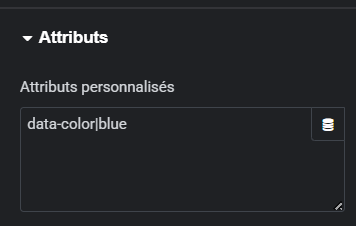
Example:
data-color|bluewill apply the class.color-blueto the body when the section is visible.
Add Color Styles to your Site
Go to Appearance → Customize → Additional CSS, or in Elementor → Custom Code → Global CSS.
Add this code:
body {
    background-color: #101012;
    transition: background-color 1s ease;
}

.color-blue {
    background-color: #7dc4ea!important;
}

.color-gray {
    background-color: #222225!important;
}

.color-purple {
    background-color: #7300FF!important;
}
You can create as many colors as you want:
Declare a .color-xxx then use data-color|xxx in your section.
Add the jQuery Script in Elementor
- Go to Elementor → Custom Code
- Click Add New Code
- Choose position Footer – End of
</body> - Paste this code:
<script>
jQuery(function($){
    $(window).scroll(function() {

        var $window = $(window),
            $body = $('body'),
            $panel = $('.panel'); // Chaque section à détecter

        var scroll = $window.scrollTop() + ($window.height() / 2);

        $panel.each(function () {
            var $this = $(this);

            // Vérifie si la section est au milieu de l'écran
            if ($this.position().top <= scroll && $this.position().top + $this.height() > scroll) {

                // Supprime toutes les classes color-*
                $body.removeClass(function (index, css) {
                    return (css.match(/(^|\s)color-\S+/g) || []).join(' ');
                });

                // Ajoute la couleur liée à la section active
                $body.addClass('color-' + $(this).data('color'));
            }
        });

    }).scroll(); // Exécute au chargement
});
</script>
How Does it Work?
- Each section with
.panelis monitored. - When the scroll reaches the middle of this section, the script:
- removes all current
color-*classes from the body - adds
color-gray,color-purple, etc.
- removes all current
- The CSS then changes the background color of the site.
With the transition:
transition: background-color 1s ease;
The color changes smoothly, for a storytelling effect.
Tips & Customization
Add more Colors
Declare a new class:
.color-green {
    background-color: #1abc9c!important;
}
Then in Elementor:
data-color|green
Make the Change Faster or Slower
Modify in body:
transition: background-color 0.4s ease;
Change the Detection Area (Middle of Section)
In the JS:
var scroll = $window.scrollTop() + ($window.height() / 2);
Replace / 2 with:
/ 3→ triggers earlier/ 1.5→ triggers later
 Créer avec Elementor